User Account Creation
User Account Creation
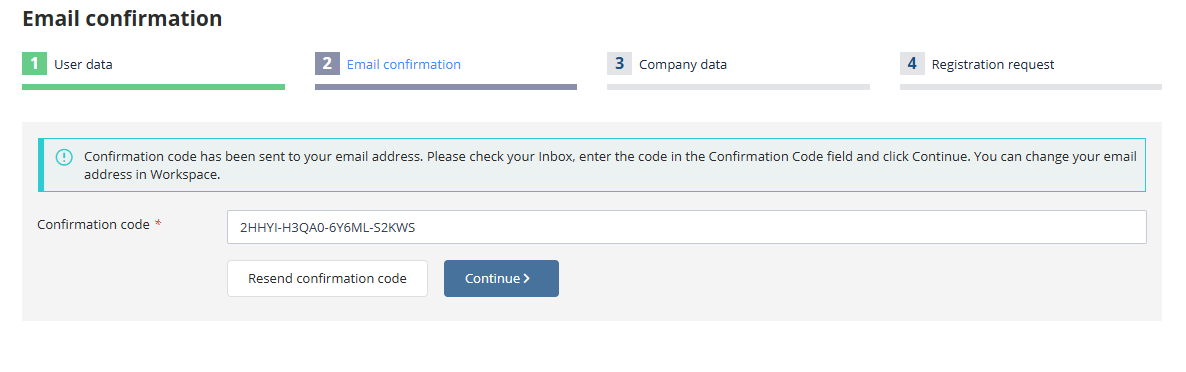
At this stage of registration, it is necessary to enter the user's information under whose name a personal account will be created in the system. Mandatory fields on the platform pages are marked with an asterisk «*».
Once all required fields are completed correctly according to system requirements, proceed to the next registration step by clicking the “Continue” button. The entered data will be saved automatically:
User Account Activation (Email Confirmation)
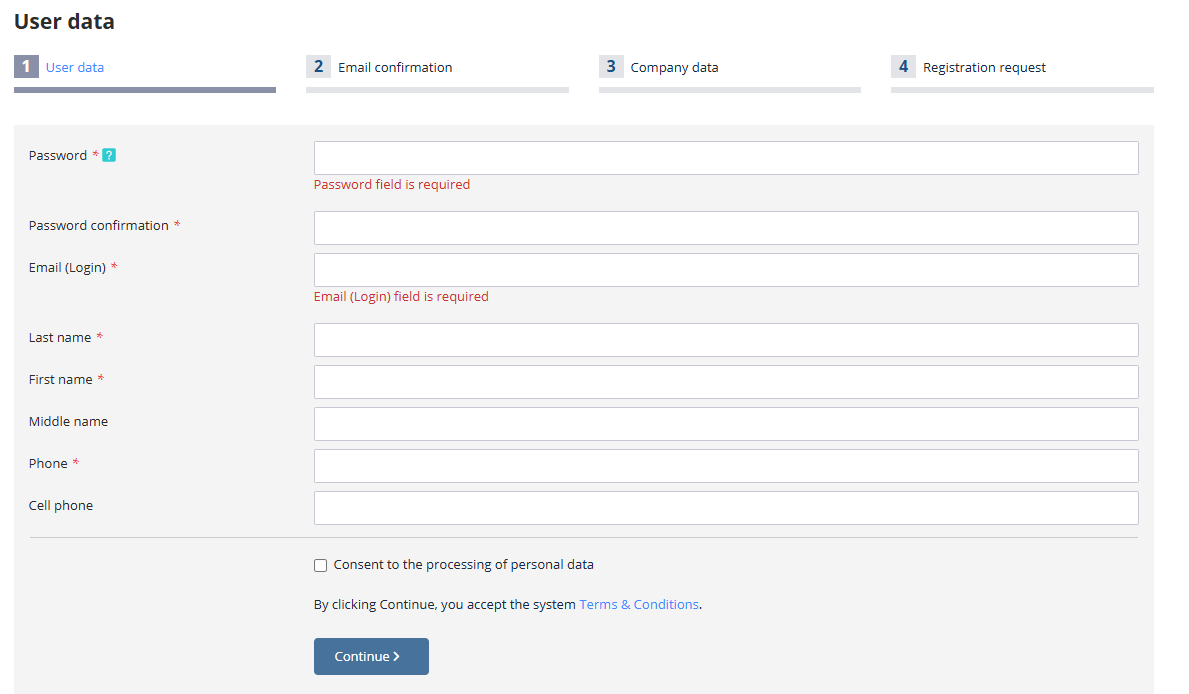
A “confirmation code” will be sent to the email address provided during account creation. To confirm the email, enter the code received in the message into the designated field and click “Continue”:
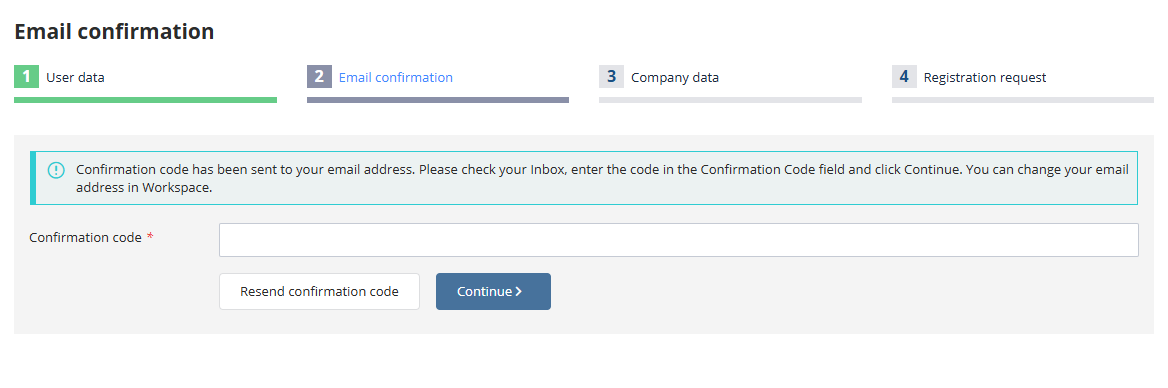
IMPORTANT! Please ensure there are no extra spaces when copying the confirmation code from the email.
If the code has not been received, you can try clicking the “Resend Confirmation Code” button. This will trigger a new confirmation email.
If the code is still not received after resending, verify the correctness of the email address provided and update it if necessary by performing the following steps:
-
Log into your personal account on the platform;
-
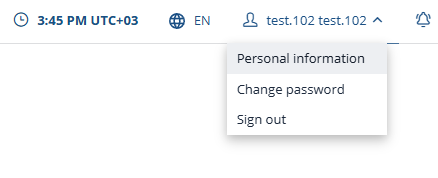
Navigate to the “Personal Information” section located in the top right menu;
-
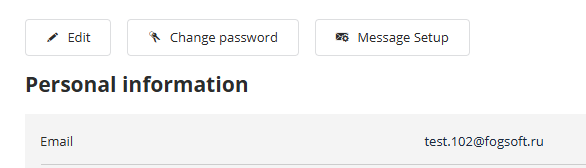
Click the “Edit” button;
-
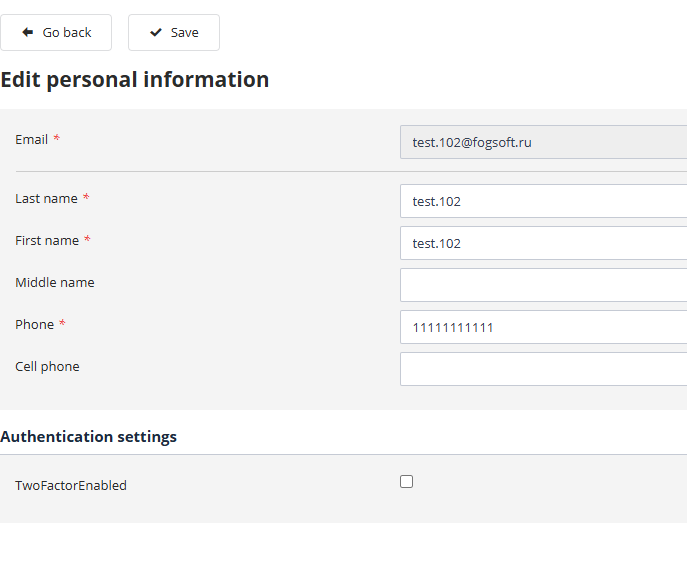
Update your email address and click “Save”;
-
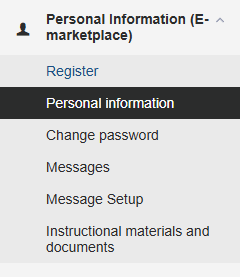
In the left side menu, select the “Registration” link;
-
Click the “Resend Confirmation Code” button;
-
Enter the confirmation code sent to the new email address, then click “Continue” to save the changes and proceed to the next registration step.