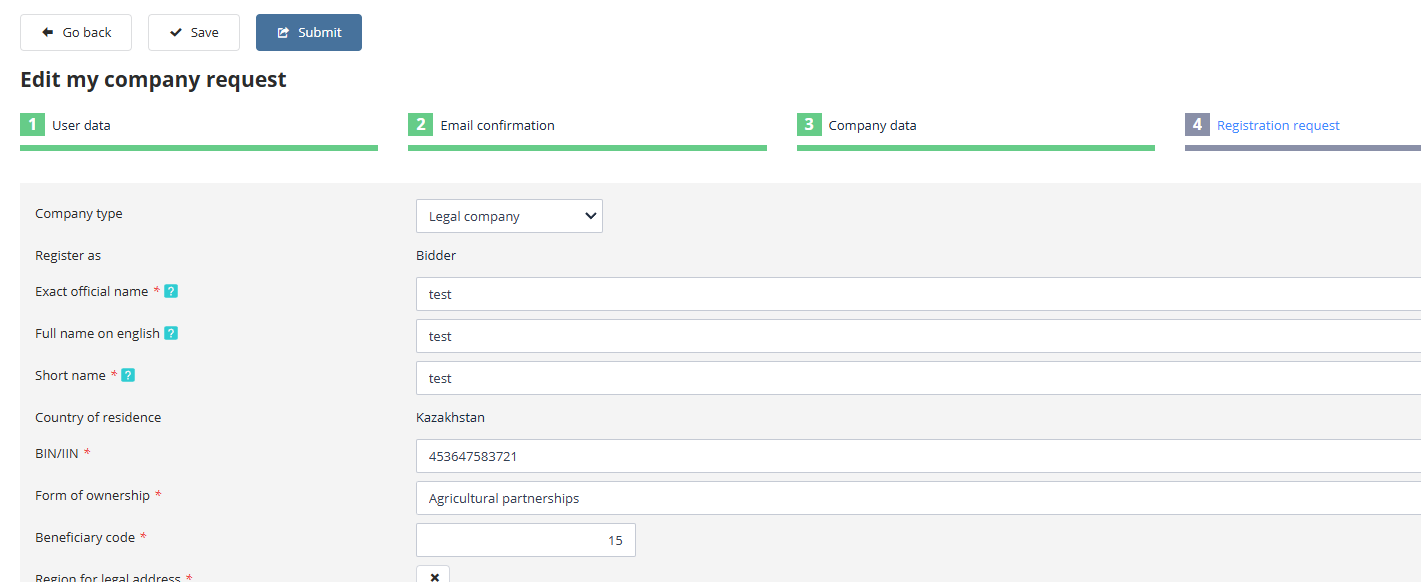
Entering Organization Information
Organization Information
At the next step of registration, you are required to provide the primary information about the organization on whose behalf the user will operate within the system. Select the organization's legal status (legal entity, individual entrepreneur, natural person, or non-resident of the Republic of Kazakhstan). Depending on the selected type, the system will generate a list of fields and documents that must be submitted with the application to the operator:
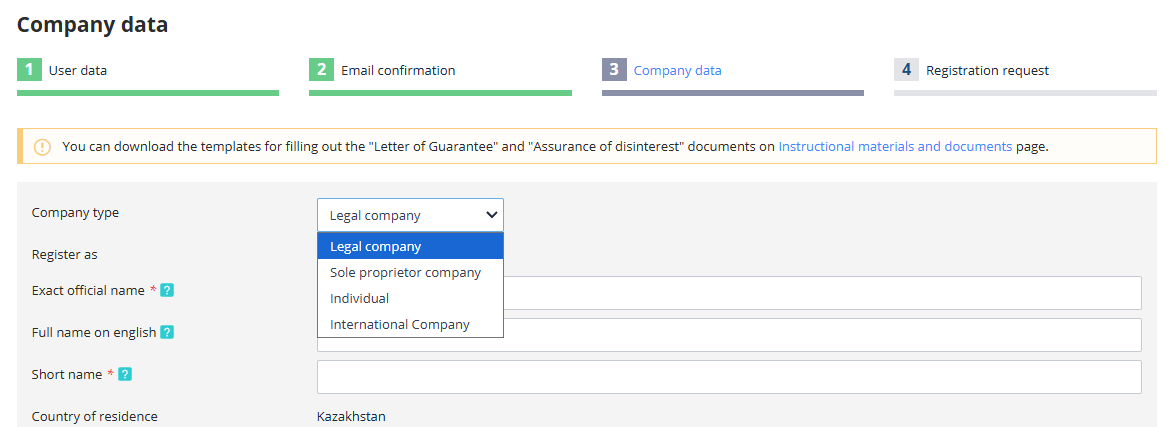
If the registration process was initiated using an invitation link from the platform, some application fields may already be pre-filled. In this case, verify the accuracy of the entered information.
IMPORTANT! The organization’s name must be entered without specifying the ownership form
Once all required fields marked with an asterisk (*) are completed, proceed to upload the necessary documents.
Document Attachment
The documents submitted with the application must verify the provided organization details. The registration documents will be accessible only to the system operator during the review process.
To upload a document electronically, follow these steps:
-
Click the "Upload File" button:
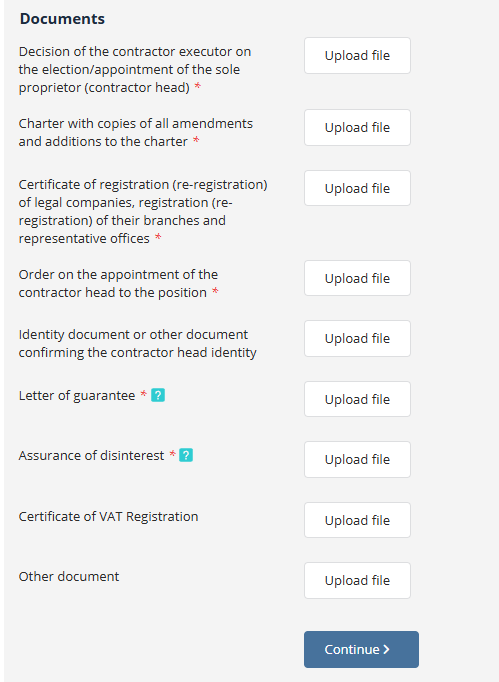
-
Select a file with an allowed extension, then click "Open".
Repeat this procedure to upload all required documents. Uploaded files can be deleted by clicking the "X" icon next to the file name:
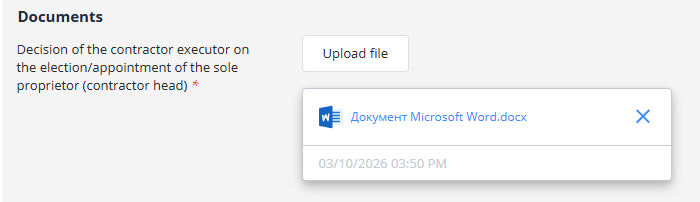
Files will be added to the organization's document list only after the operator reviews and accepts the application.
After completing all mandatory fields and uploading all required documents, proceed to the next registration step by clicking the "Continue" button.
If an organization with the entered information is already registered on the platform, a warning message will appear:

In this case, contact the operator for instructions on continuing work on the platform.
Editing a Saved Application Draft
The registration process can be paused at any point and resumed later from where it was left off.
To continue filling out the registration application, log in to the system and navigate to the saved draft through the personal account menu or via the link in the notification message.
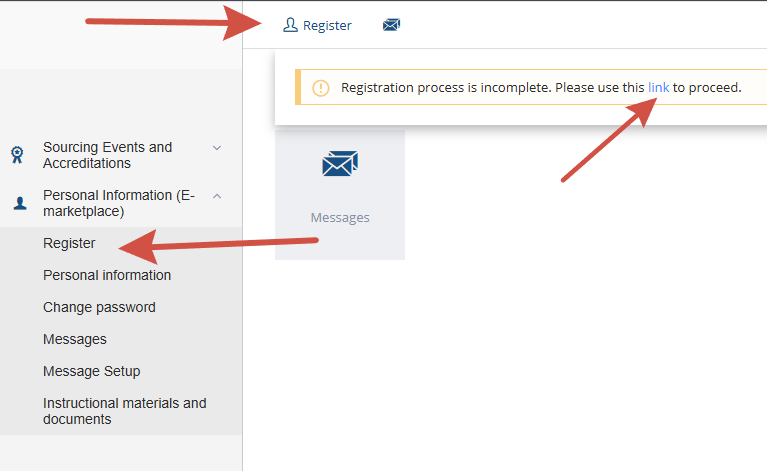
Clicking the link will open the registration application at the step where the work was previously paused: