Section "My Organization"
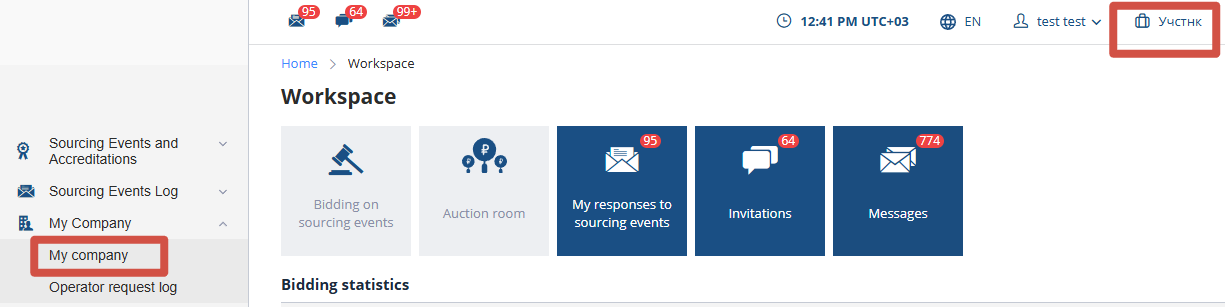
Every authorized user operates in the system on behalf of the company they are employed by. You can access the "My Organization" page by clicking on the company name in the top menu or by selecting the "My Organization" link in the left menu:
Organization Information
On the "My Organization" page, employees can view the company’s primary legal and contact information, as well as the organization's documents:
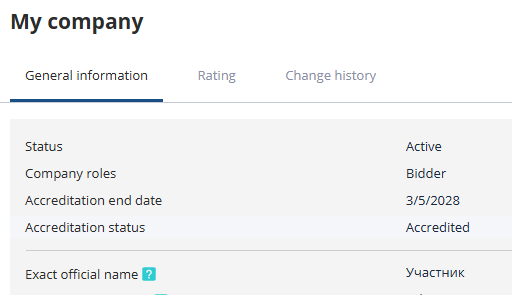
Only employees with the "Company Administrator" role are permitted to modify the organization’s information and documents.
Organization Employees
This section of the "My Organization" page contains the list of company employees. To quickly find an employee, click the "Filter Options" link, fill in the necessary fields, and click the "Search" button:
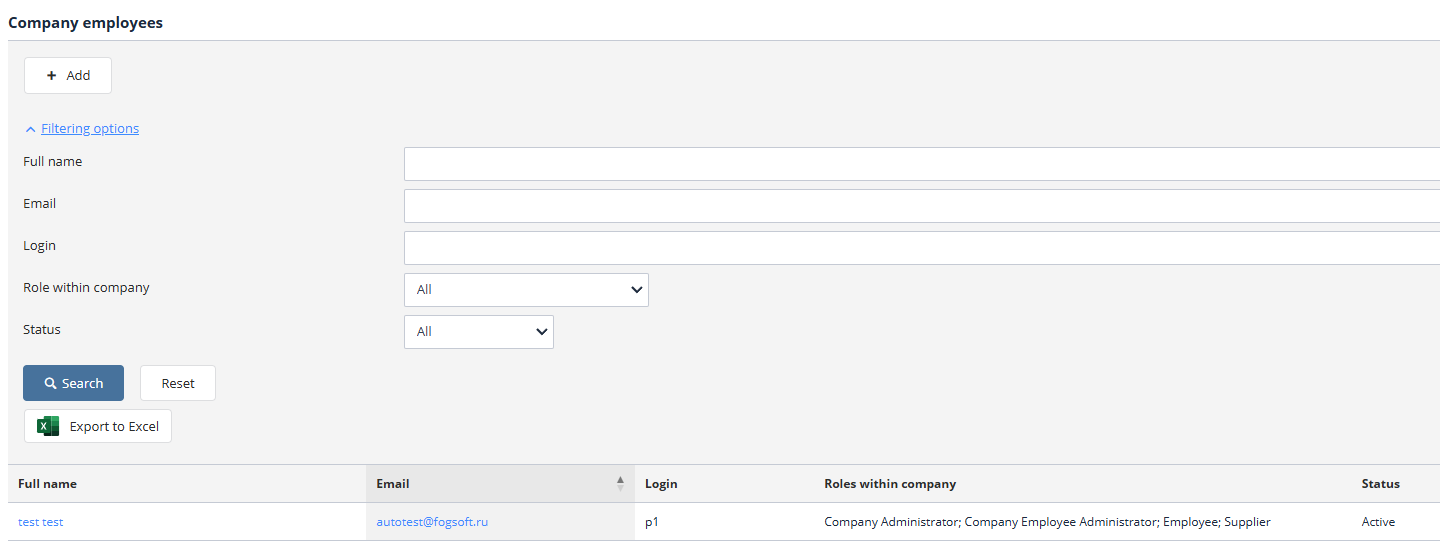
Users with the role "Company Employees Administrator" can edit the list of all company employees registered on the ETP and add new ones:

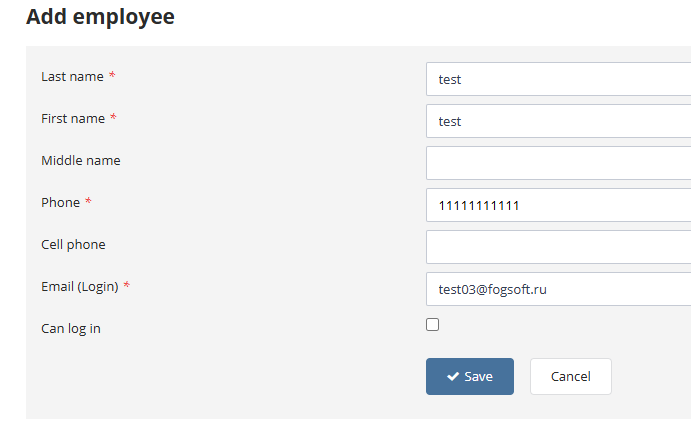
To add a new employee, click the "Add" button. The company administrator must then enter the required fields: last name, first name, email address, phone number, and roles. To allow the new employee to log into the system, check the box "Can log in" and enter the user’s login in the displayed "Login" field. This step is optional; the login can be added later when editing the employee’s details. Once all mandatory fields are complete, click "Save" to create the new user:
On the employee’s profile page, the company employees administrator can edit the employee’s general information and their roles on the platform:
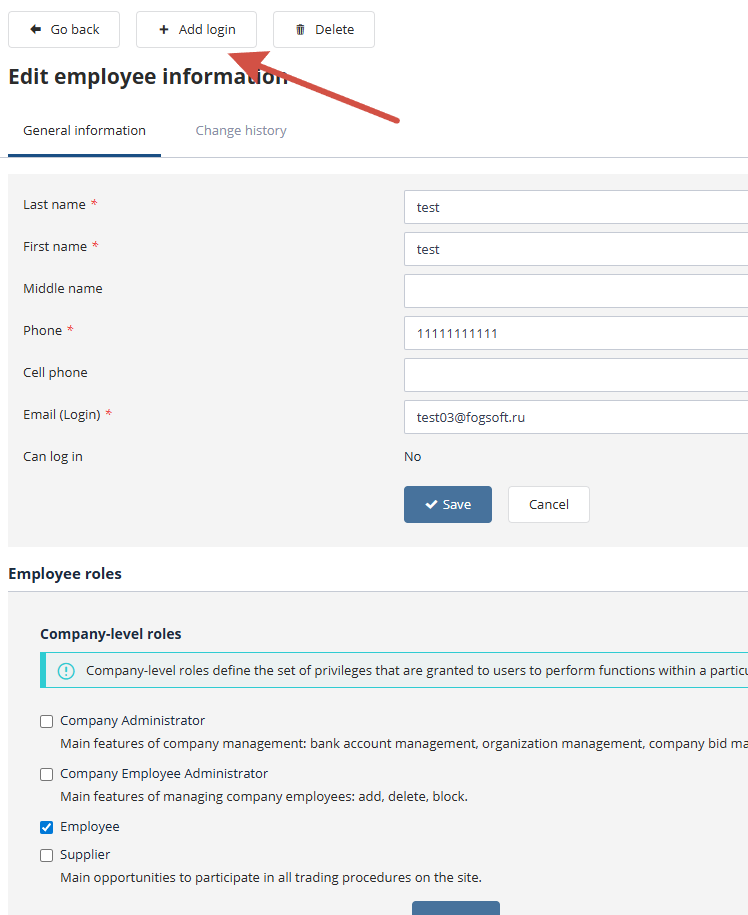
When updating employee details or roles on the platform, make sure to click the "Save" button within the corresponding section.
If a user was created without a login, their login can always be assigned on their personal information page. To do this, click the "Add login" button, enter the login in the form, and click "Save":
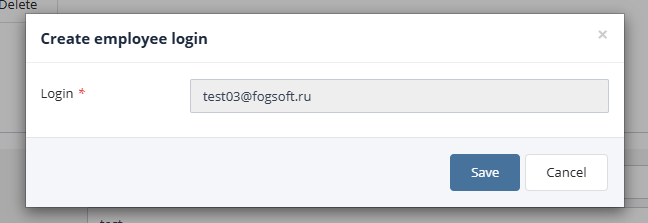
An email with the user’s personal login and an automatically generated password will be sent to the provided contact email. After logging into the system, the password can be changed to a more convenient one.
Once a personal login has been assigned, the company employees administrator’s interface on the "Employee Information" page will replace the "Add login" button with the "Block" button. Clicking "Block" prevents the user from accessing the electronic trading platform. To restore access and allow the user to log in and use the system, click the "Unblock" button.
The company employees administrator can delete a registered user from the platform, which will remove all user data from the system.
Employee Roles on the Platform
Company Employees Administrator – a user with this role can modify employee information for the organization.
Company Administrator – a user with this role can manage bank accounts and oversee the organization.
Other roles are specific to various types of organizations and are described in the relevant manuals.
Organization Bank Accounts
The "Bank Accounts" section lists the organization’s accounts:
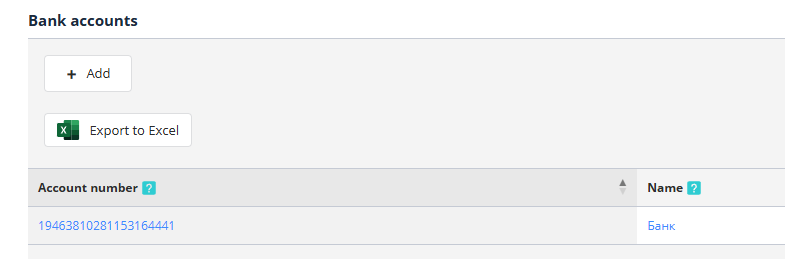
A user with the "Company Administrator" role can add a new account by clicking the "Add" button:

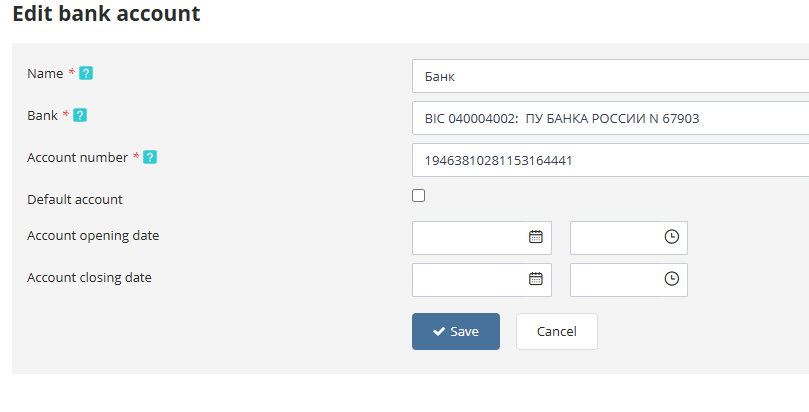
On the account addition form, enter the required account details and click "Save". The bank name and BIC are automatically retrieved from the directory when a partial bank name is entered in the "Bank" field.
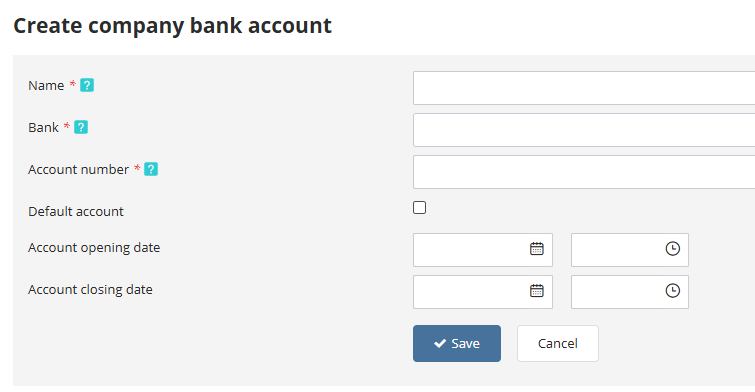
If the required bank is not found in the list, contact the operator by sending an email request to add the bank to the system. The request should include the bank’s name, BIC, and correspondent account.
On the account view page, a user with the "Company Administrator" role can edit the account details and save the changes by clicking the "Save" button.
Change History
The "Change History" tab displays events related to the organization—such as changes to company statuses and actions performed by company employees (e.g., procedure creation, participation application submissions):
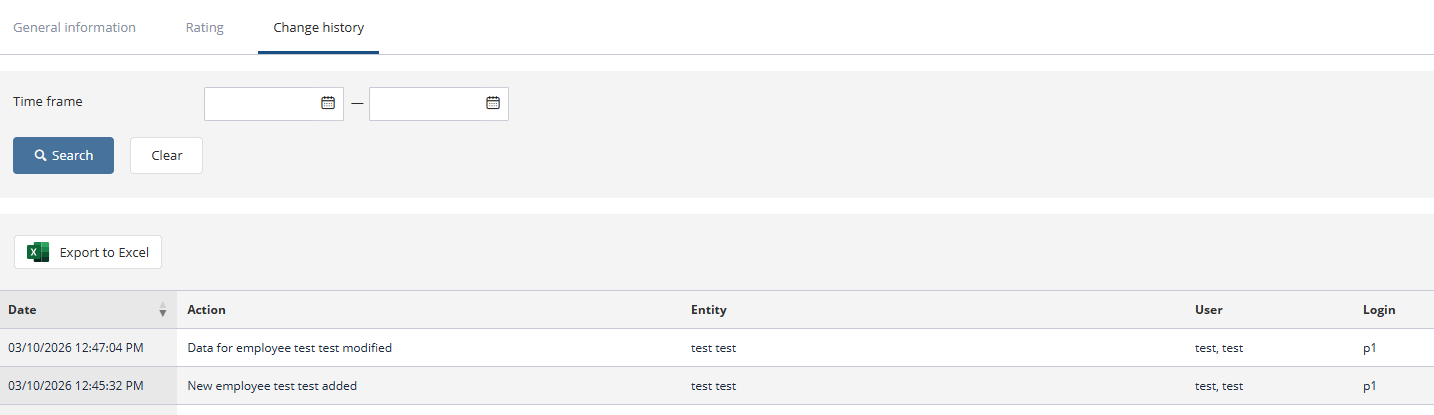
You can specify a particular time range during which company activities occurred. To do this, select the start and end dates in the "Time Interval" filter and press the "Search" button.