User Account Setup
The main sections related to personal data and user account settings are located under the "Personal Information" section.
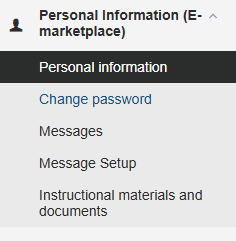
Let us take a closer look at how to work within each subsection.
User Personal Information
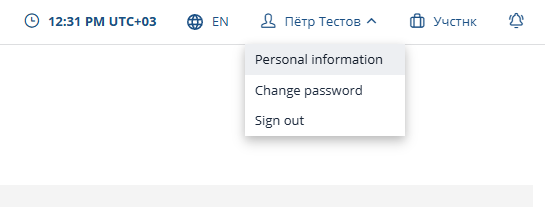
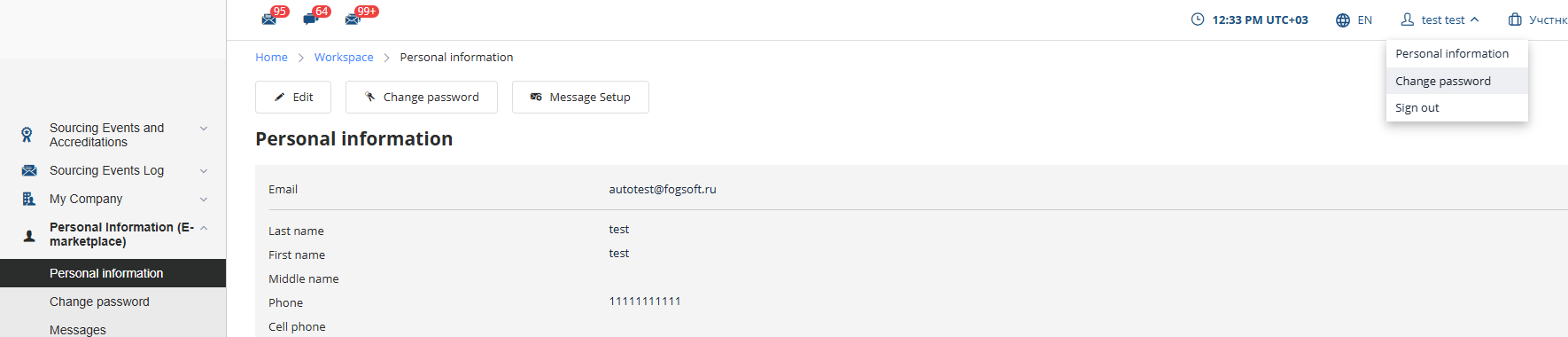
You can access your personal information either by selecting the corresponding item in the left menu or by clicking on your username at the top of the page and selecting "Personal Information" from the dropdown menu:
The page displays the user’s personal details, including login, email address, full name, phone numbers, user status within the system, and roles within the company:
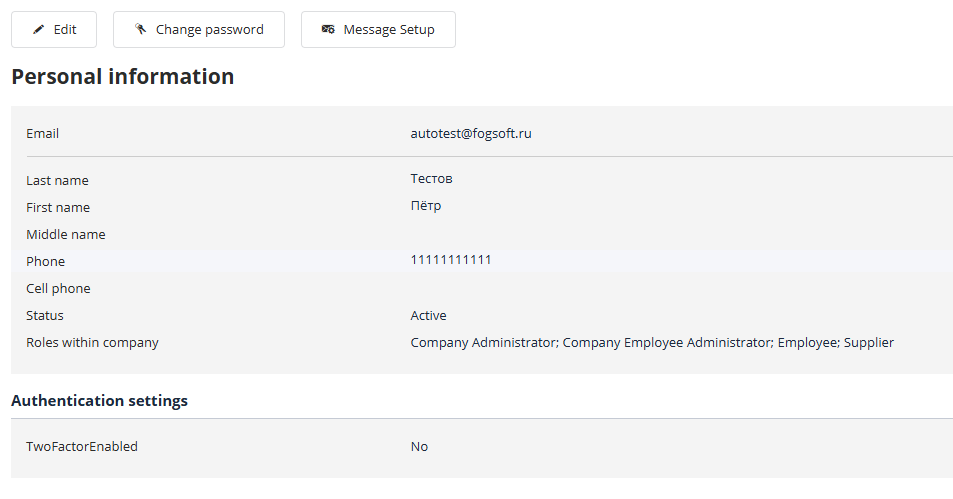
All personal details except the login can be edited at any time.
To edit personal information, click the "Edit" button:

On the editing page, enter the updated information and click the "Save" button:
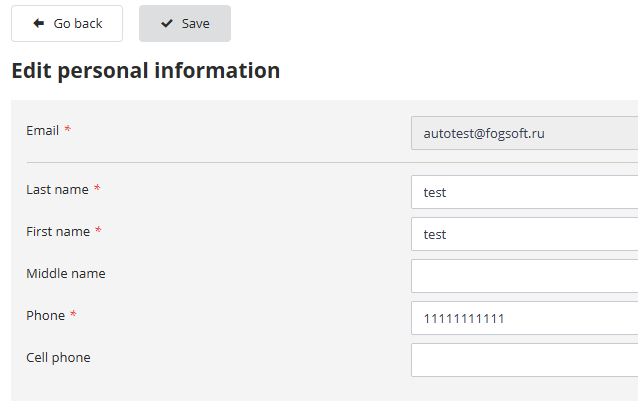
Changes take effect immediately upon saving.
Password Change
There are several ways to access the password change option:
-
Click the username at the top of the page and select "Change Password";
-
Go to the "Personal Information" page and click the "Change Password" button;
-
Access the "Personal Information" section and select the "Change Password" menu item.
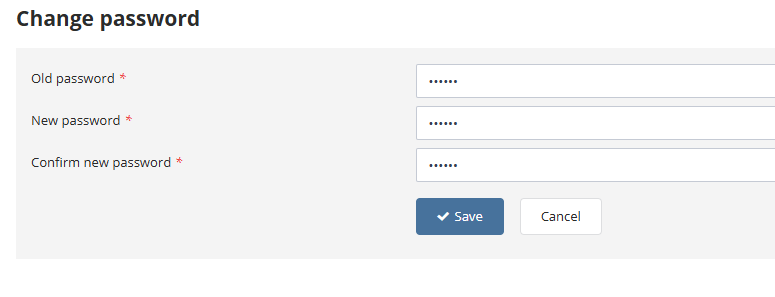
On the password change page, enter your current password, the new password, and confirm the new password. Click "Save" to apply the changes:
"Incoming Messages" Section
Within the user account, there is a section for viewing all notification messages addressed to the user. This section displays messages related to procedures, the user's organization, and messages intended specifically for the user.
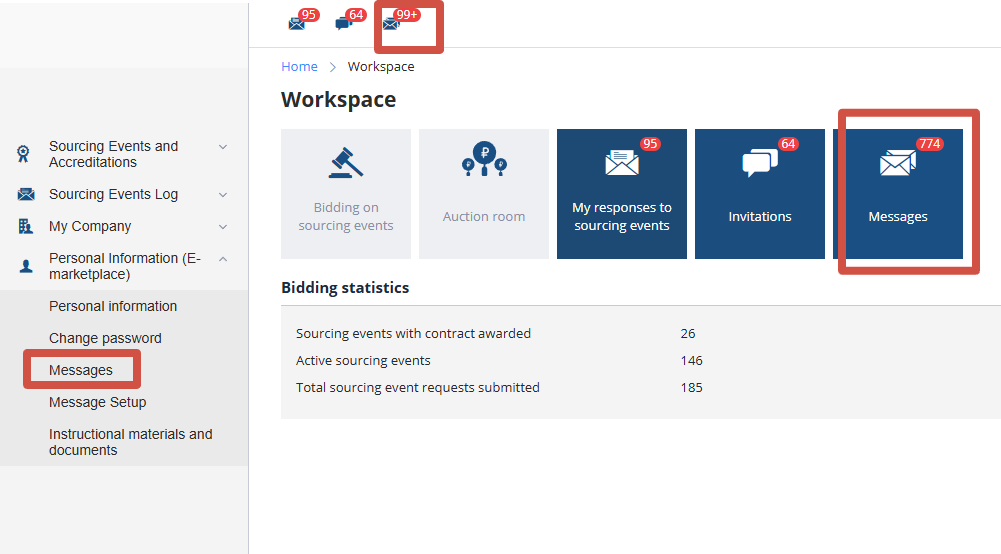
You can access messages via the left sidebar menu, the quick access tile in the personal account, or the quick access icon at the top of the page:
All messages addressed to the user appear on the "Incoming Messages" page. Unread messages are highlighted in bold:

To view the full text of a message, click the subject link.
Messages can be marked as read or unread, as well as deleted. To do this, select the desired messages with checkboxes and then click the corresponding button above the message list. To refresh the message list, click the "Refresh" button.
"Message Settings" Section
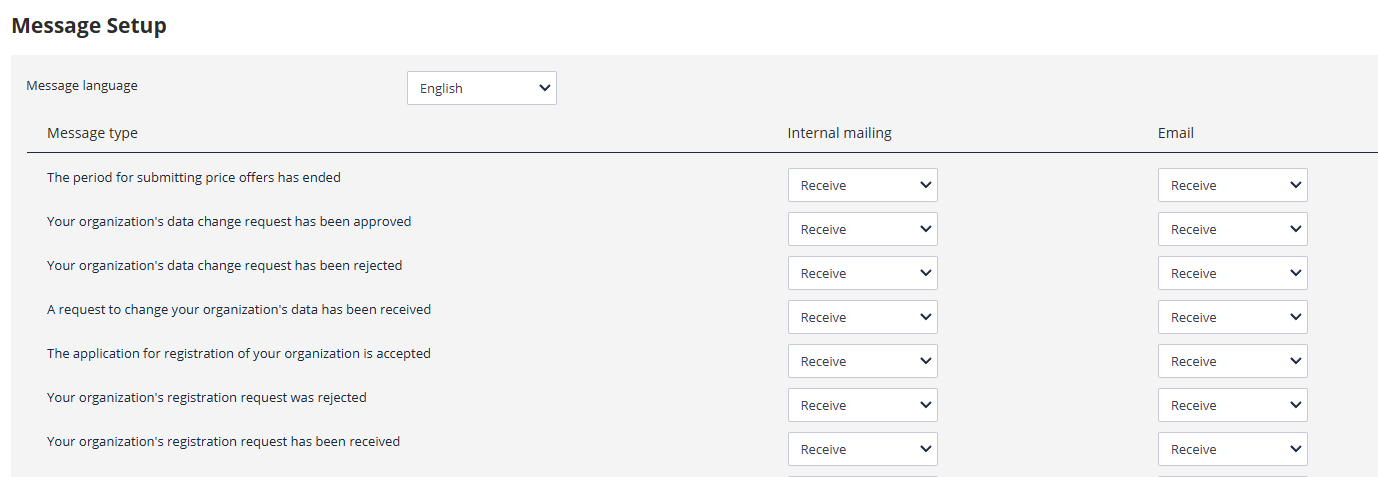
Users can specify which system events they wish to receive notifications about. To access the message settings page, select the appropriate item in the left menu:
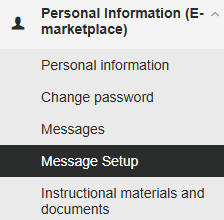
On the message settings page, indicate which types of messages you want to receive. You can also choose where notifications will be sent: to the internal mailing list (the "Incoming Messages" log) and/or to the user’s email address. Click "Save" to apply any changes:
Training Materials
This section contains documents designed to assist users in navigating the system. The document set depends on the company’s role within the system and the employee’s roles within the company.